STRIDE Help

Help › Quick reference › AI features
Quick start
AI features
Two minutes on what the AI features actually do — and what they deliberately don't. For the full picture, see the full manual.
AI helps you work faster and get more from your notes, tasks and OKRs — by finding action items, tidying up content, and highlighting what matters.
- Find action itemsAI can scan your note text and find potential action items.
- Tidy up contentAI can help improve formatting, make text clearer, and fix spelling and grammar.
- Work across featuresAI supports Notes, helping you keep information organized and actionable.
- Stay in controlYou decide what to use. Review and apply suggestions with one click.
Save time
Get to the important actions faster.
Turn insights into progress
Use AI to help you capture, organize and move work forward.
Full quick start
- It's your own key, always. Nothing here runs on a key this company pays for. Add your own in Settings → AI — Claude (Anthropic) or OpenAI, your choice — and every AI-enabled feature reads it from there. Until you do, a feature that needs it is simply not on the screen, not a button that fails when you press it.
- It suggests. The app decides. A model reads a note, a comment, an email or an imported file and points at what looks like an action item, a name or a date — as words. Matching that word to a real person, a real date or a real permission is this application's job, done in code, every time. Two people named "Ashley" on a board means nobody gets assigned, with a note saying why, rather than a guess. A model here never writes to the database, never picks a user, and never invents a due date.
- Where to find it. A capability on one page isn't a capability on every page — see the table below for exactly where each one lives.
What's actually where
- Tasks by Email
- Create a personal task without opening STRIDE. Open the
AI Assistant panel from the top bar and you will find the address to mail, with a
button to copy it. Send from your primary sign-in email or a verified alternate on
your account — a message from anywhere else is not matched to you and nothing is
created. The subject and the body are read by your own AI Assistant, so it has to be
set up first; the task lands in your Personal Tasks, due today. It is never a team
task and never lands on a board.
The panel shows how many of your messages succeeded and how many failed. Those count unique messages only — if the same one is delivered twice, or retried, it is still one result, because the application records each message once and recognizes a repeat. The address and the counts appear only when your organization has switched the feature on for a team you are in; if you cannot see them, that is why.
- Tasks
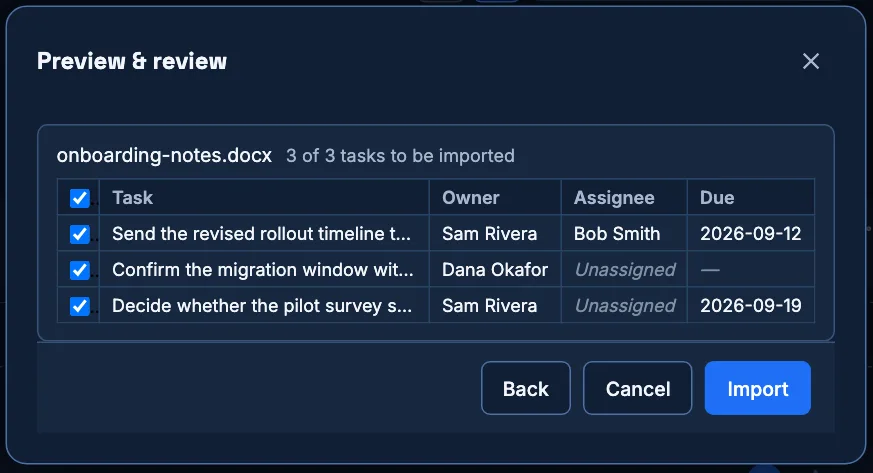
- Import your tasks (Settings → Your data) reads a pasted Word, Excel, CSV or text file and proposes tasks, shown above. Tidy formatting works on a task's description and comments; the paper-plane button beside Watch and Email, labeled Follow-up, drafts a status-check email. Week Agenda writes a saved weekly brief from your own tasks, also reachable from the Calendar page. (Update from email, which folded a pasted email into a task, was removed on 2026-09-20 — mailing the task in does the same job in one step, and the message is then saved on the task for you to read and reply to.)
- Team board
- The same import wizard, reading onto a board instead of your own list, plus Draft follow-up… on a board task.
- Notes
- Open a note and look for the AI assistant card in its own rail: Find action items reads the note and parks what it finds on the checklist — a suggestion, not a task, until you make one of it. This card stays visible even with no key configured; it says so, and the button opens Settings → AI for you instead of failing.
- OKRs
- An objective, key result or quarter can carry a written insight — prose about the progress, pace and health this application already calculated. Every number in it is one you can already see on the bar beside it; the model is never asked to do arithmetic.
Good habits
- Your key lives in Settings → AI and nowhere else — it is never written into a CSV export or a backup, and switching providers never carries one key's secret to the other's field.
- An ambiguous match is left for you to resolve, not guessed. That applies to a name, a date and a due date alike.
- A big import that's regenerating shows live progress, and if a regeneration ever fails partway, whatever you already had stays on screen rather than being cleared first.
- Removing your key turns a control off immediately — no reload, no reopening Settings.
Words you'll see
- AI-enabled feature
- Anything that calls a model. Needs your own key in Settings → AI to appear at all.
- Suggestion
- Something AI found — a possible action item, a possible owner. Not written anywhere until you accept it.
- Your own API key
- A credential from your chosen provider's own console (console.anthropic.com for Claude, or OpenAI's). Billed to your account, stored with your account, read only from your own browser.
Want more detail — every AI button, per-provider setup, what each one sends and doesn't? Open the full manual →