STRIDE Help

Help › Quick reference › Calendar
Quick start
Calendar
See your time, manage your work, and stay focused.
The Calendar gives you a clear view of your tasks and commitments so you can understand your workload and adjust your focus on what matters most.
Your time, your focus
See what's ahead, move things around, and keep your work aligned with your priorities.
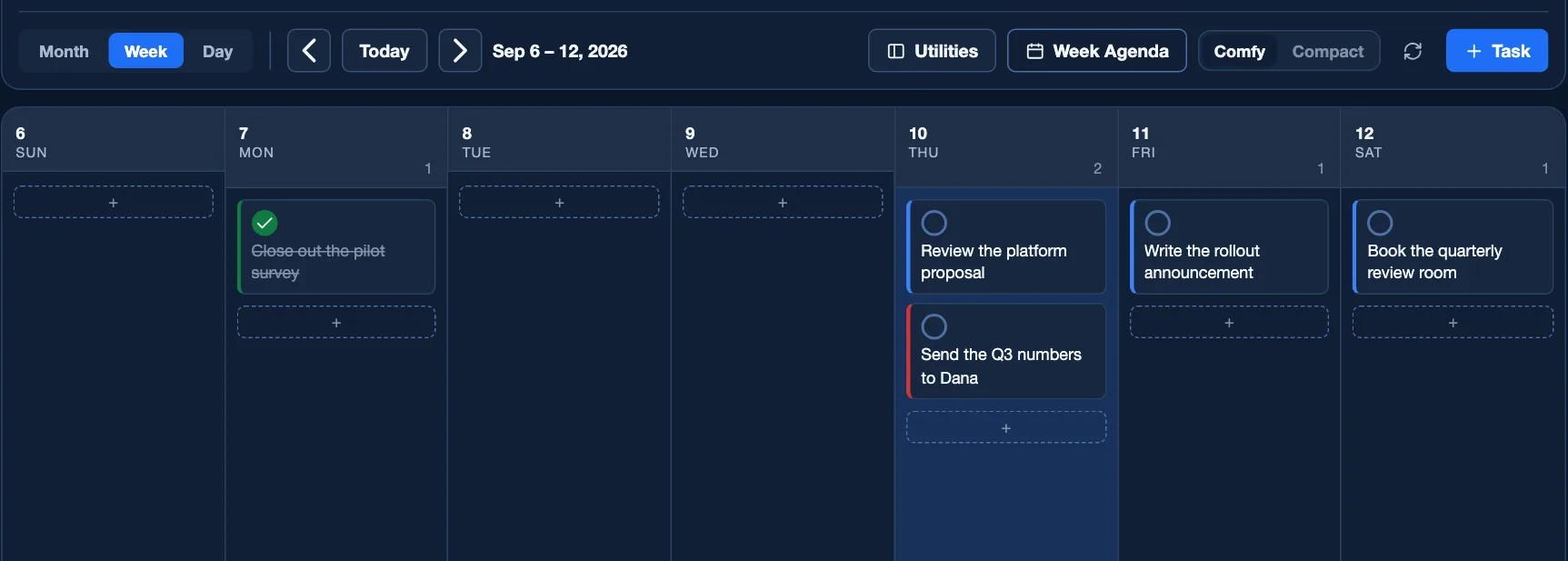
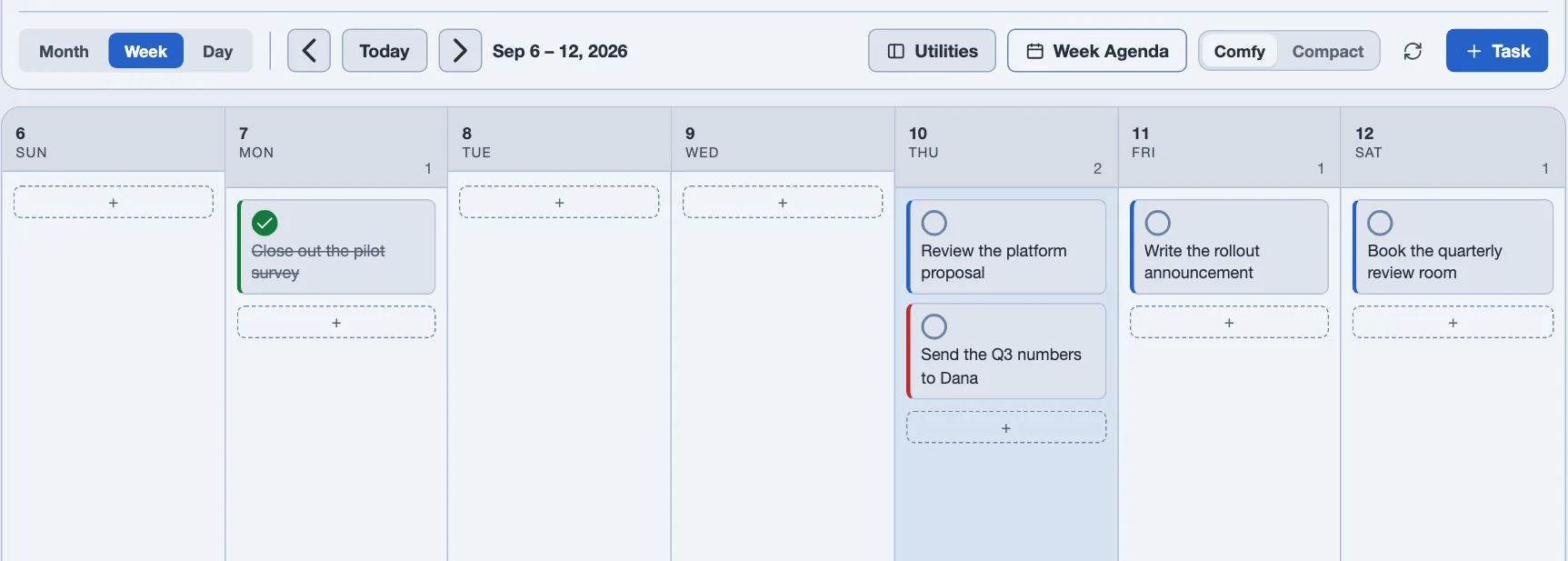
- See what's aheadQuickly see how many tasks are due today, overdue, have no date, and what's coming up this week.
- Choose your viewSwitch between Month, Week, or Day to see the level of detail you need. Use the arrows or Today to navigate dates.
- Move tasks between daysDrag and drop tasks to a different day to adjust your plans and keep your schedule up to date.
- Add tasksCreate a new task directly from the calendar or drag an existing task onto a day.
- Adjust your layoutUse options like Week Agenda, Comfy, or Compact to change how you view your calendar. Show or hide the utility rail to keep the view focused on what you need.
- Use the utility rail (optional)Show the utility rail to access helpful tools and information (like time, quick links, or other widgets) while you plan your work.
Understand your workload
- See what's due and what's coming up
- Identify conflicts or busy periods
- Adjust your focus on what matters most
Stay aligned
- Keep work and commitments in one place
- Move tasks as priorities change
- Be prepared for the week ahead
Make it yours
- Choose your preferred view and layout
- Show or hide the utility rail
- Your settings are remembered
Full quick start
The Calendar gives you a clear view of your tasks and commitments so you can understand your workload and adjust your focus on what matters most. There's no separate "event" here — everything on this calendar is a task with a due date.
Your time, your focus
See what's ahead, move things around, and keep your work aligned with your priorities.
- See what's ahead. Four tiles across the top count Due today, Overdue, No date and This week — "This week" is the calendar week you're viewing, Sunday through Saturday, not just the next seven days. Click No date to open the No date yet card, where undated tasks collect instead of cluttering the grid.
- Choose your view. Month, Week and Day sit at the left of the bar. Use the arrows to step through dates, or Today to jump straight back — it always means today, not the date you stepped away from.
- Move tasks between days. Drag a task onto a new day to reschedule it. No mouse? Select the task and press Shift+← or Shift+→ to nudge it a day at a time — everything a drag can do, a keystroke can too.
- Add tasks. Click Task at the top, or double-click any day to open the same new-task box, already dated for the day you clicked. A plus row at the bottom of each column does the same thing.
- Adjust your layout. Week Agenda opens a saved, printable read of the week — no AI key needed to open it, only to generate or regenerate one. Comfy and Compact set how much detail each task shows; it's the same density control used across the suite, not a calendar-only setting.
- Use the Utilities panel (optional). Show or hide it under Utilities to keep the grid focused on just the calendar. Open, it holds the clock, weather, a mini month view and your quick links.
Understand your workload
- See what's due and what's coming up
- Identify conflicts or busy periods
- Adjust your focus on what matters most
Stay aligned
- Keep work and commitments in one place
- Move tasks as priorities change
- Be prepared for the week ahead
Make it yours
- Choose your preferred view and layout
- Show or hide the Utilities panel
- Your settings are saved to your account and follow you to any device
Words you'll see
- Focus
- The same suite-wide tag filter as everywhere else — narrows the calendar to one tag.
- Utilities panel
- The side rail with the clock, weather, mini month and quick links.
Want more detail — the widgets, time zones, week starts? Open the full manual →