STRIDE Help

Help › Quick reference › Notes
Quick start
Notes
Capture ideas, run better conversations, and turn what matters into action — with groups, checklists and AI to keep it organized. For everything else, see the full manual.
Notes help you keep track of discussions, plan next steps, and collaborate with others. Use checklists, pages, and AI to make your notes more useful and actionable.
A single note can hold your full conversation
Add pages to capture multiple interactions (for example, recurring 1-1s or project check-ins) so you have the complete history in one place.
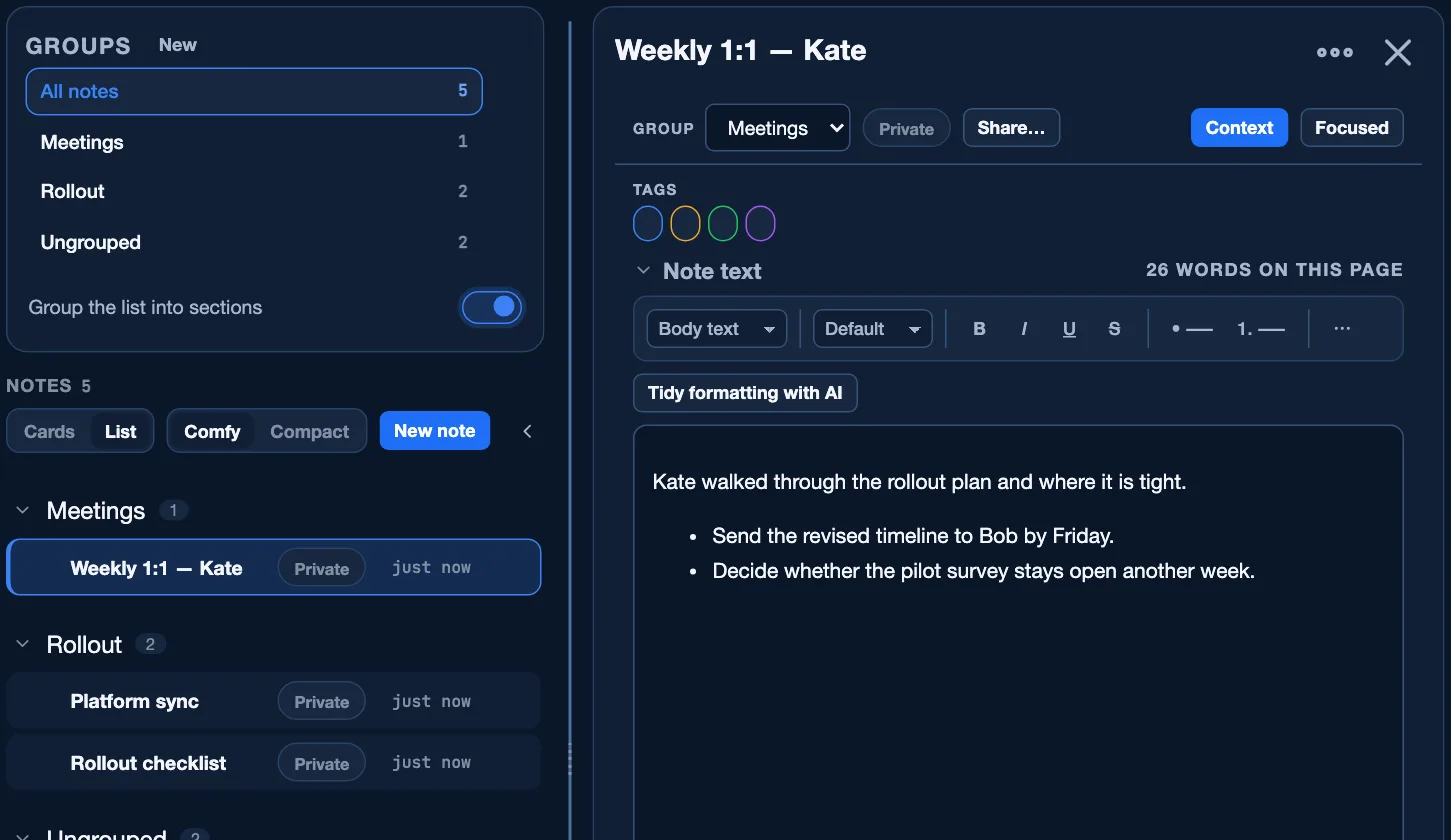
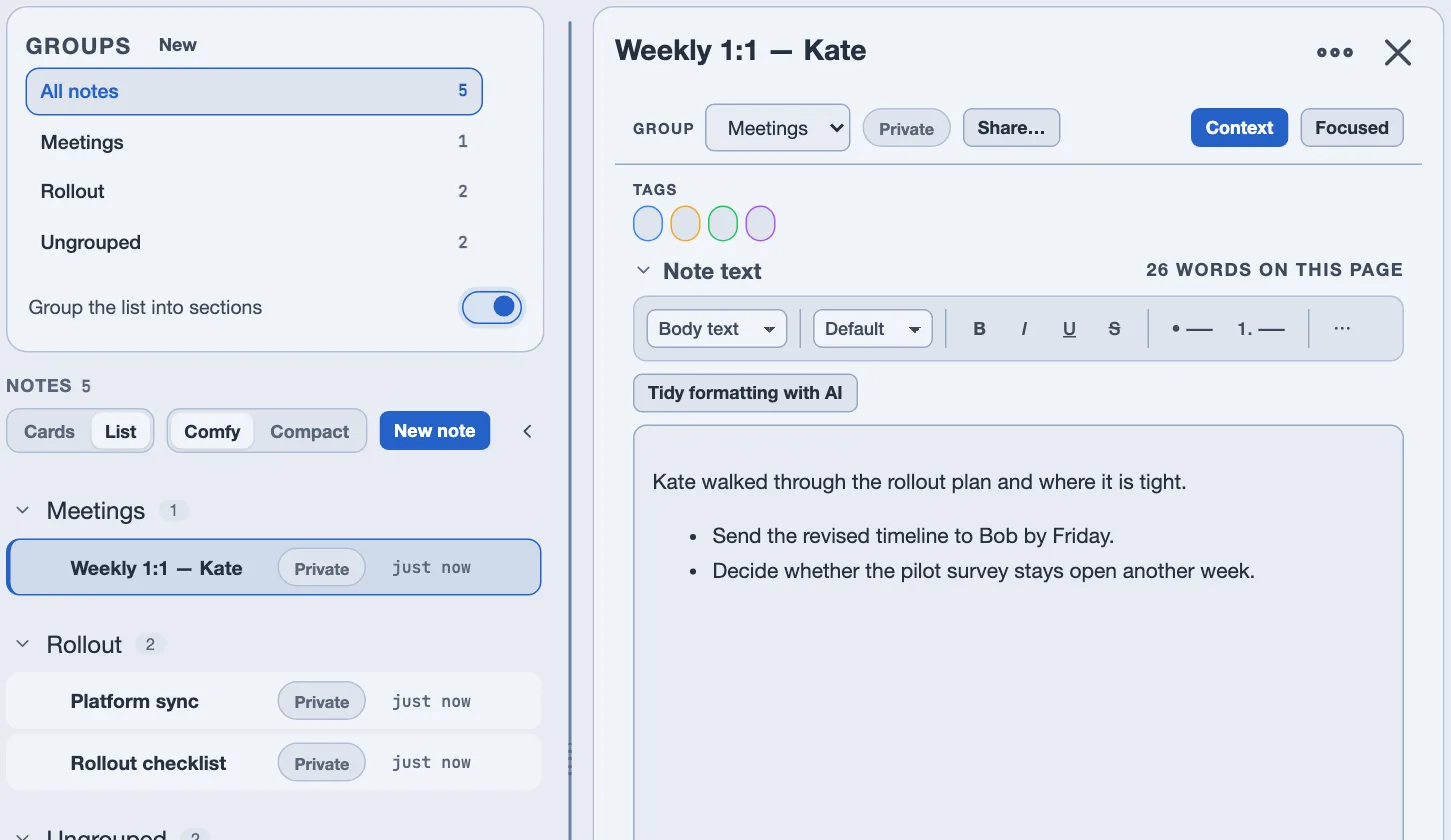
- Find your notes quickly Use the search bar and filters to see all notes, private notes, shared notes, notes updated today, or recently updated.
- Organize with groups Put notes into groups like General, 1-1s, or Workshops to keep things organized. A note belongs to at most one group, and you can turn list sections on or off. Drag a group by its handle to reorder them — the list below follows the same order.
- Your notes See who each note is shared with and when it last changed, and choose with Comfy or Compact how much of each one the list shows.
- Write and tidy with AI Use AI to tidy up formatting and make your notes clear and easy to read.
- Use checklists to track next steps Add quick activities to your note. Turn a checklist item into a task, or link it to an existing task to drive work forward.
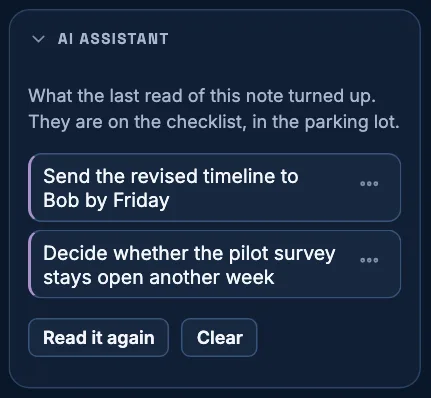
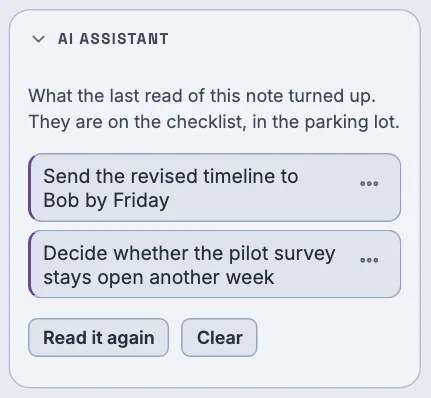
- Find action items with AI Let AI scan your note text to find potential action items and add them to your checklist.
- The utility rail (optional) The right rail shows helpful context (people, related tasks, AI assistant, and a quick summary). You can show or hide the utility rail in Notes view.
- Use pages for ongoing meetings Add pages to a note to capture multiple interactions (for example, recurring 1-1s). Keep the full conversation history in one note.
Make it yours
- Customize the utility rail per page
- Choose the widgets and tools you see
- Your layout, size and order are remembered
Share or print
- Share notes for interactive 1-1s
- Print notes to take to meetings
- Keep everyone aligned
Turn discussion into action
- Capture what matters
- Identify next steps with AI
- Create or link tasks and keep work moving forward
Full quick start
- Find your notes fast. The search bar and the filter row above the list — All notes, Private, Shared, Updated today, Recently updated — narrow what you see, and every count updates live.
- Organize with groups. File a note under a group you name — Meetings, Rollout, whatever fits your work — to keep the list tidy. A note sits in at most one group, or none; Group the list into sections turns that grouping on or off. Put the groups in the order you want them: drag a group by the handle on the left of its name and drop it where it belongs, and the sections in the list below move with it. The order is saved to your account, so it is the same on every device and after every reload. If you would rather not drag — or you are on a phone, where there is no handle — the … beside a group has Move up and Move down, and Alt with the up or down arrow does the same thing from the keyboard. Open or close every group at once with the small chevron beside the NOTES count. It is lit only while every group is open, so it always tells you what the next press will do: lit closes them all, unlit opens them all. Folding a single group on its own turns it unlit, which is the honest answer — not everything is open any more.
- Your notes, your way. Comfy gives each note two lines — its tags, checklist progress, a line of the text, and, on a note somebody shared with you, who owns it. Compact drops to one line per note so more of them fit. Every row shows whether a note is Private or Shared, and when it last changed. Click New note to start one — it saves as you type.
- Tidy formatting with AI. Cleans up structure — headings, lists, spacing — without changing a fact, name or date you wrote. It needs your own AI key in Settings → AI; until you add one, the button simply isn't there.
- Track next steps on a checklist. Add items under To-do, In progress, Complete or Parking lot. Turn an item into a brand-new task, or choose Link to a task to connect it to one that already exists.
- Point an item at work on a team board. An item's … menu also offers Link to a team task, for work that is being tracked on a board rather than on your own list. This one is a search, and it starts empty on purpose. It reaches every task on every board you belong to — hundreds, on most accounts — so rather than listing them it waits for you to type. Search by the task's name; results show its status, which board it is on, and when it is due, and Open, Completed and All narrow what comes back. Only work you can already open on a board is ever offered, and that is decided by your board membership, not by this screen. A blue Team Task chip appears on the item; clicking it opens that task on the team board so you can check on progress. The board never sees it. Nothing is added to the task, nobody on that board is notified, and no one there can tell the link exists — it lives only on your checklist item. An item can carry both links at once: your own task and the team task the work sits on. Unlink from team task on the same menu removes it, and nothing on the board changes. If the task is later deleted, or moves to a board you can no longer open, the chip goes gray and stops being clickable rather than taking you somewhere that isn't there.
- Comment on an item. Comment, also on the item's … menu, opens the note's own comment thread with the item's text seeded as an editable starting line, ready for you to type an update straight after — and @ still mentions someone from there. It works whether or not the item is linked to a task or a team task. The comment always posts to this NOTE's thread, the same one every other comment on it uses; it is never copied to a linked task's own comments.
- Let AI find what you missed. Find action items reads the note and parks what it spots on the checklist as suggestions — nothing becomes a task until you say so. This card stays on screen with no key configured; it tells you what's missing instead of failing.
- The rail beside the note — optional. Shared with, Related tasks, AI assistant and Notes at a glance live in a rail beside an open note. Show or hide it, and choose what it carries, per page in Settings → Widgets.
- Use pages for anything recurring. A standing 1:1 or a weekly meeting is one note with a + Page for every session, not a new note each time. Double-click a page's tab, or press F2, to rename it.


Get more from Notes
Make it yours
- Choose which widgets the rail shows, per page, in Settings → Widgets
- Drag a card to reorder it, or fold one you don't need right now
- Your layout, size and order come back exactly as you left them
Share or print
- Share… names the people who can read and edit the note
- Print note… puts it on paper for the meeting
- Email note… sends it straight from the note's own menu
Turn discussion into action
- Make a task from this note — on its … menu — turns the whole note into one task
- Convert a checklist item into a task instead, or link it to one that already exists
- Link to a team task searches every board you belong to — type a name, pick the task, and you get a Team Task chip you click to check on progress, invisible to everyone on that board
- Find action items suggests more, right from what you wrote; a linked task carries the note it came from
- Comment on any item, linked to a task or not, and it posts to the note's own thread
Words you'll see
- Group
- A folder you create to organize the note list. A note belongs to at most one. You choose the order the groups appear in, and the note list below uses it too.
- Page
- A dated section inside one note — not a separate note.
- Action items
- Things the AI assistant spotted in your note that could become tasks. You choose which ones actually do.
Want more detail — sharing, formatting, resizing the panels? Open the full manual →