STRIDE Help

Help › Quick reference › Widgets & rail
Quick start
Widgets & the utility rail
Two minutes on the column of widgets beside your work — what's in it and how to make it yours. For everything else, see the full manual.
Widgets give you at-a-glance information so you don't miss important meetings, can check the weather, see the date, and quickly access your most used tools. Each page can have its own widget layout, tailored to what you need there.
-
Time zones
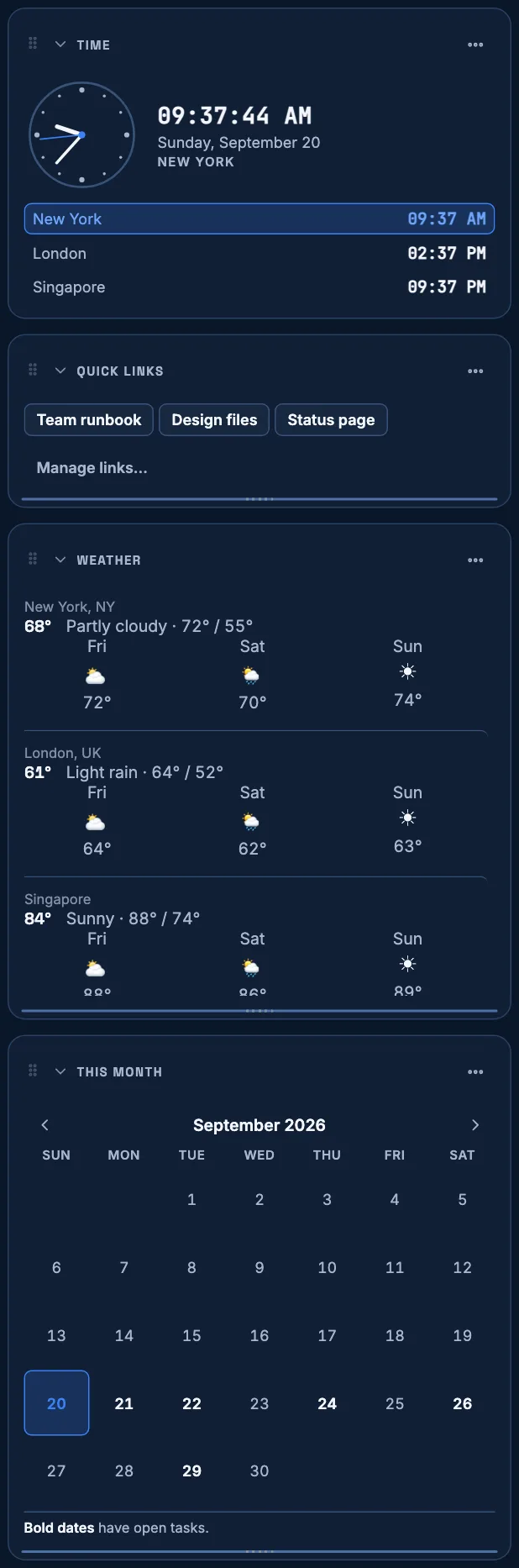
See the current time, date, and time zone for your location and other key regions so you don't miss that meeting.
-
Quick links
Keep your most used sites and tools just one click away (for example, your intranet home, a shared drive, or a team wiki).
-
Weather
Check the current weather and upcoming forecast for your location and places you may travel soon.
-
This month
A simple calendar reference so you always know what day of the week it is and can see key dates at a glance. Dates with open tasks are shown in bold — press one to see what is due that day.
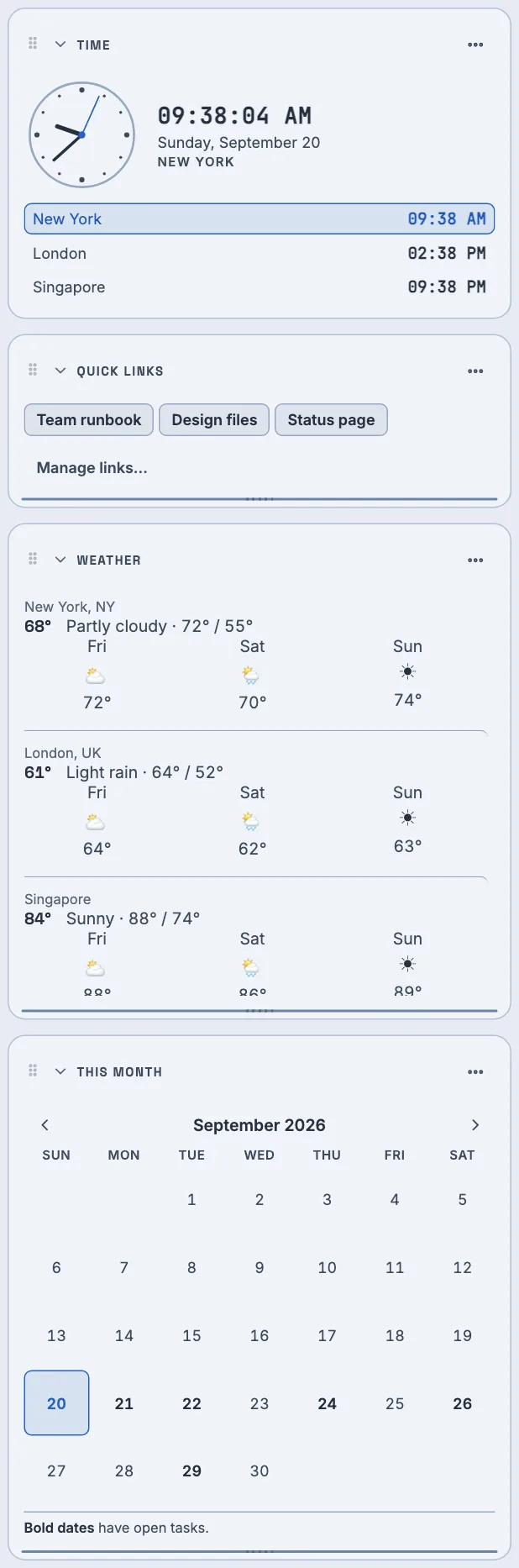
Make it yours
Widgets remember your order, height and fold, and that arrangement is tied to your account rather than to this browser — so your layout is ready when you return, on any device.
Customize per page
The widgets you see can be different on each page. Set them up to match what's most useful for you.
Adjust anytime
Drag to rearrange or resize on the fly, or use the “…” menu to configure each widget in more detail in My Settings.
The Utility Rail
Your tools, your way.
The utility rail gives you quick access to the widgets and tools you use most. You can customize it per page so you see what's relevant to your current work.
-
Customize per page
Choose which widgets and tools appear on each page.
-
Reorder
Drag to rearrange the rail to match your workflow.
-
Configure more options
Use the “…” menu or go to My Settings to fine-tune your preferences.
Full quick start
The utility rail runs down the right-hand side of Tasks, Notes, the Calendar and the team board, holding up to four widgets so you don't miss a meeting, catch the weather, or lose track of the date without leaving what you're doing.
- Time. The current time, date, and time zone for your own location and any other key regions you add — so you don't miss that meeting.
- Quick links. Your most-used sites and tools, one click away. Anything your team has already published shows automatically; add your own on top, with no limit on how many. You decide which of them you actually see. A link your team publishes arrives switched on, and you can switch it off for yourself — it leaves your widget and stays in the list so you can switch it back on later. You are never changing the team's copy, and nobody else's widget changes. Your choice is saved to your account, so it holds from one session to the next and on any device. Open the widget's … menu and choose Manage links… to get there.
- Weather. Current conditions and the next few days for the places you choose — your own city, or anywhere you may be traveling soon. Press the card for the full reading, which also breaks the next 24 hours down hour by hour. Add a place by name, or let the widget use your device's location if you allow it; nothing needs a sign-up or a key.
- This month. A small calendar for reference, so you always know what day of the week it is. A date shown in bold has open tasks due then; today is the date in the filled blue square. A key under the grid says so too.
- Press a bold date to see that day's work. A small panel opens listing the open tasks due then, each with its status, and two buttons at the bottom: View tasks narrows your task list to that one day, and Open Calendar opens the week that day falls in. Press Esc, or press the date again, to close the panel without going anywhere. A date with nothing due has no panel to open — it takes you straight to the calendar, as it always has.
Make it yours
Each card remembers its own order, height and whether it's folded down — tied to your account, so it's exactly how you left it the next time you sign in, on any computer.
The utility rail
Your tools, your way — the column the widgets live in is just as much yours to shape as what's inside it.
- Customize per page. Choose which widgets appear, and whether the rail shows at all, separately for Tasks, Notes, the Calendar and the team board. Turn something off on Notes and Tasks is untouched.
- Reorder. Drag a card by its heading to match how you work — or press Alt with an arrow key — and the new order is saved the moment you drop it.
- Resize. Weather, Quick links and This month can also be resized — drag the grip at the bottom of the card.
- Configure more options. A card's … menu opens straight to the setting it controls — which time zones, which weather locations, which links. Or open My settings from the account menu in the top bar: Widgets decides which cards show on which page, and Time, weather & links is where you manage what each one contains.
Words you'll see
- Utility rail
- The column of widgets down the right-hand side of a page.
- Widget
- One card in the rail — Time, Quick links, Weather, or This month.
- My settings
- Your own preferences, opened from the account menu in the top bar — separate from any settings a specific page or team keeps of its own.
Want more detail — reordering from the keyboard, saving weather locations, how many quick links you can add? Open the full manual →