STRIDE Help

Help › Quick reference › Tasks
Quick start
Tasks
The shape of a task, the two-minute core loop, then the rest of what Tasks does. For everything past that, see the full manual.
A task is a single piece of work owned by one person. You can connect a task to team boards, objectives, and key results to keep work aligned and visible across the right places.
-
You
1 owner
A task is owned by one person (individual only).
-
Task
Individual only
A single piece of work you (or a teammate) do.
A task can be on one or many team boards.
A task can be linked to an objective.
A task can be linked to a key result.
-
Tasks are owned by one person
Every task has a single owner — an individual. Tasks cannot be owned by a team, and they are always personal ownership.
-
Tasks can be on one or many team boards
A task can be added to multiple team boards so the same work can be visible to different teams, initiatives, or workflows. Each appearance on a board can carry its own optional topic. A task can be on a team board without being in your individual task list (see On board view).
-
Tasks can be linked to an objective
Link a task to an objective to show how the work contributes to a larger outcome. You can also create a new objective directly from a task.
-
Tasks can be linked to a key result
Link a task to a key result to show how the work helps deliver a specific, measurable outcome. You can also create a new key result directly from a task.
On board view
A task can be on a team board without being in your personal task list. Switch to your "On board" view in your task list to see tasks that appear on team boards.
Create as you go
While creating or editing a task, you can create a new objective or a new key result and link the task to it in one step.
Keep work aligned
- Link tasks to objectives and key results
- Add tasks to multiple boards
- See team work in one place
The big picture
Individual (owner) → Task → (optional) Objective → (optional) Key Result → (many) Team Boards.
A task is a single piece of work that connects your day-to-day work with your team's bigger goals.
Full quick start
How the pieces fit together
A task belongs to one person, always — most of your list stops there. Connecting it to a board, an objective or a key result is optional.
-
You e.g. Jane Smith 1 owner
Always an individual, never a team.
Others can be assigned, named or watching without changing who owns it.
-
Task e.g. Draft the Q3 proposal Individual only
A single piece of work.
Most of your own list stops here — no board, no objective, no key result.
-
Team Boards Optionally shared 1 : many
A task can appear on one or many team boards.
Each appearance carries its own optional topic, without leaving your own list.
-
Objective e.g. Grow platform adoption Optional
Shows how the work contributes to an outcome.
Create a new one right from the task, linked in the same step.
-
Key Result Via an objective Optional
Shows how the work moves a number.
Create a new one right from the task, linked in the same step.
A board task can be off your own list
Switch to On team boards, above your list, to see it.
Keep work aligned
- Link tasks to objectives and key results
- Add a task to more than one board
- See a team's work in one place
The big picture
Owner → Task → (optional) Objective → Key result, and separately, Task → (many) Team boards. Due date, checklist and status aren't in this picture — they live on the task itself.
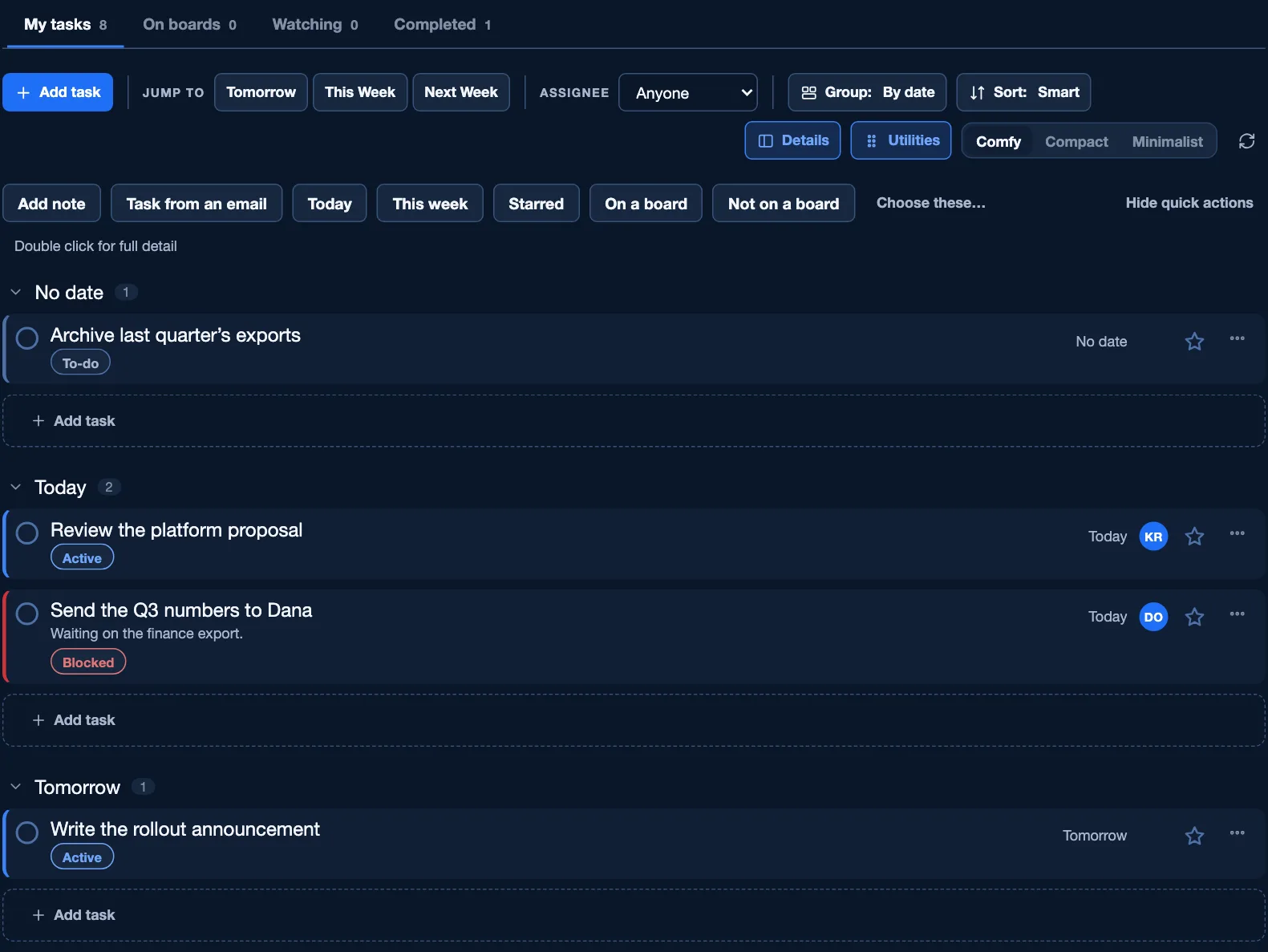
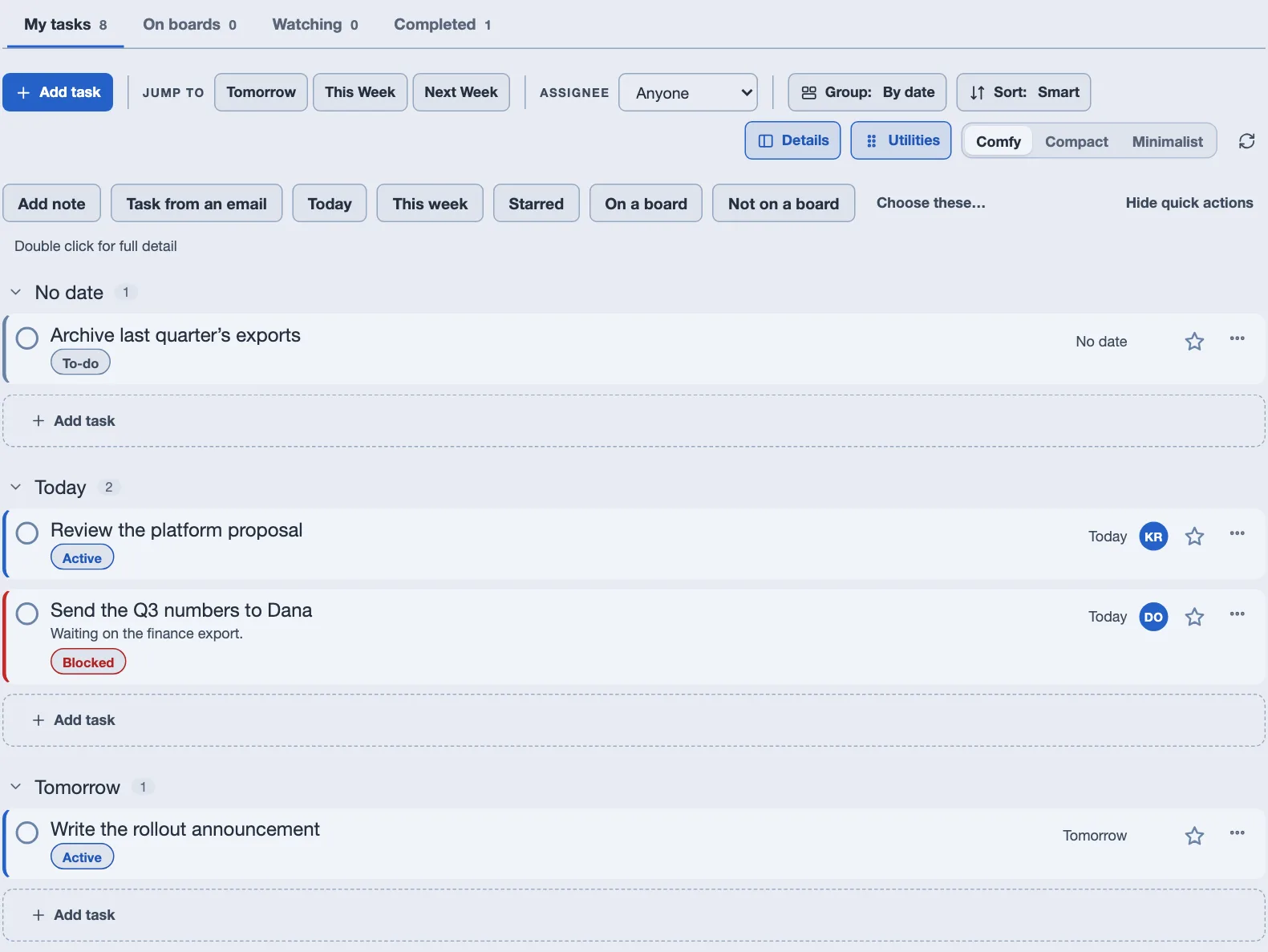
- You land on My tasks. The tabs across the top are My tasks, On team boards (your work that's on a shared board but off this list — you turned that off, or someone else is doing it), Watching (someone else's task you want to keep an eye on) and Completed.
- Add one. Click Add task, or press Ctrl/Cmd+Alt+N from anywhere. No due date is required — an undated task still shows up, it just doesn't crowd a day.
- Open it. Click a task once for a quick peek in the side panel; double-click (or press Enter) to open the full editor — checklist, tags, comments, reminders, all in one place.
Seeing it your way
- Weekly agenda
- Week Agenda (Tasks or Calendar toolbar) opens a saved AI brief of the week — generated once, reopened after. A saved brief opens fine without a key; generating one needs a key.
- Widgets
- Clock, weather, month and quick links, in the rail. Pick which each page shows and reorder them (drag, or Alt+arrow) from Settings › Widgets — saved to your account, so it follows you anywhere.
- Comfy, Compact, Minimalist
- Buttons near the top. Comfy is full detail; Compact is one line each; Minimalist (desktop only) trims to a lean nav, the densest list, and the task beside it. Minimalist is Tasks-only, and leaving it restores your density.
- Double-click for the full editor
- One click peeks; double-click a row — or press Enter — for the full editor, in every layout. Also reachable, without a pointer, from Open the full task in the row's … menu.
Keeping work moving
- Reminders and recurring tasks
- Reminders, in the editor, emails you — hourly, daily, weekly or monthly — until done, archived or removed; needs email reminders on (a shared board needs its team's too). Repeat, beside the due date, recurs a task — completing one occurrence stays completed, and a new, linked task covers what's next.
- Note and OKR links
- From a note means created from — or linked to — a note's checklist item (Link to a task, in its menu). Tick Mark as an OKR to link an objective or key result (structure above) — linking a private task never exposes it; it shows in a key result's Linked work list only for people who could already see it.
AI, on your own key
- Follow up with AI
- The paper-plane button beside Watch and Email, labeled Follow-up, drafts a status-check email to the assignee (or you) from the task's status, next steps and due date — edit it, then Post as comment to record that you followed up, or copy it or open it in Outlook.
- Formatting with AI
- Tidy formatting with AI, on the description and comment boxes, reformats what you wrote — structure only, every fact kept as typed.
Both, and the brief above, run on your own AI key, added in Settings › AI — no key, no buttons.
Good habits
- ⌘K / Ctrl+K jumps to search — tasks, notes, people, teams and OKRs at once.
- Clear filters appears on an empty, narrowed list so it never quietly means "something broke" — pressing it puts everything back at once.
- Hide the widget rail under Utilities; Details does the same for the task panel.
Words you'll see
- My Tasks
- Tasks that belong to you, board or no board.
- Focus
- A filter narrowing every page to one tag. Reads "Everything" until set.
Want more detail — import, printing, time zones, keyboard shortcuts? Open the full manual →