STRIDE Help

Help › Quick reference › Team board
The Team Board brings together boards, topics, and tasks so you can see what everyone is working on, group related work, and track progress at a glance.
-
Team 1 team People, plus every board below it.
A team is your people and all their work
A team includes your team members and all boards within the team. People can work across multiple boards, and the Team Board gives you a single view of it all.
-
Boards 1 team → many boards Every board belongs to exactly one team.
Boards separate work by purpose
Create multiple boards for different initiatives, departments, or ways of working. Each board belongs to exactly one team.
-
Topics Optional Group a board's cards into sections.
Topics keep work organized
A topic belongs to exactly one board. Use topics to group related tasks, phases, or areas of focus. Topics are optional, and a board can have none, one, or many.
-
Tasks Many : many Actionable work owned by a person.
Tasks can appear on multiple boards
A task isn't a leaf inside a board — it's owned by one person, and can appear on several boards at once, each appearance carrying its own optional topic.
A task on more than one board is normal
The same piece of work can be visible in more than one board or topic. Sharing it onto a second board doesn't copy or move it, and taking it off one board never takes it off any other — it's the same task wherever it shows up.
Why use multiple boards?
- Separate initiatives, departments, or teams
- Tailor workflows to different needs
- Keep focus with topics and clear ownership
- Get a complete view of team work in one place
The big picture
Team → Boards → (Optional) Topics → Tasks. One team, many boards. Each board can have many topics. Tasks can appear on multiple boards. People own the work.
Full quick start
How the pieces fit together
Most tasks aren't part of any of this — a task has no team, board or topic until you put it on one. For the ones that are: boards, topics and tasks come together here so you can see who's doing what, group related work and track progress at a glance.
-
Team People, plus every board below it. 1 team
A team is your people and all their work.
Your team members, plus every board below it. People can work across several boards, and the Team Board gives you a single view of it all. Every team also has exactly one OKR space (1 : 1) — switched on for the whole team, not created board by board — holding however many objectives and key results it needs.
-
Boards Every board belongs to exactly one team. 1 team → many boards
Boards separate work by purpose.
A team can hold more than one — for different initiatives, departments or ways of working — and each one belongs to exactly one team. Its lanes, the status columns work moves through, are a separate axis and aren't part of this chain.
-
Topics Group a board's cards into sections. Optional
Topics keep work organized.
A topic belongs to exactly one board — never shared between boards. Use them to group related tasks, phases or areas of focus; a board can have none, one or many.
-
Tasks Actionable work owned by a person. Many : many
Tasks can appear on multiple boards.
A task isn't owned by a board — it's owned by one person (others can watch it, not own it), and can appear on several boards at once, each appearance carrying its own optional topic. Taking it off one board never removes it from any other.
A task on more than one board is normal
The same piece of work can be visible on more than one board, each with its own topic. Sharing it onto a second board doesn't copy or move it, and taking it off one board never takes it off any other — it's the same task wherever it shows up.
Why use multiple boards?
- Separate initiatives, departments, or teams
- Tailor workflows to different needs
- Keep focus with topics and clear ownership
- Get a complete view of team work in one place
The big picture
Team → Boards → (optional) Topics → Tasks. One team, many boards; each board can hold many topics. Tasks can appear on several boards at once, and people own the work throughout.
- Pick the team, then the board. A team owns one or more boards, so the Team dropdown decides which boards the Board dropdown offers. All boards shows every board's lanes at once, read-only, until you pick one to add work to.
- Add work to a lane. Click Add task in any column, type a title, press Enter. Owner is a real teammate and routes the task to their own My Tasks; Assignee is just a label — you can name someone with no account.
- See who owns what without opening anything. The By assignee strip above the board is a live filter — click a person to see just their work.


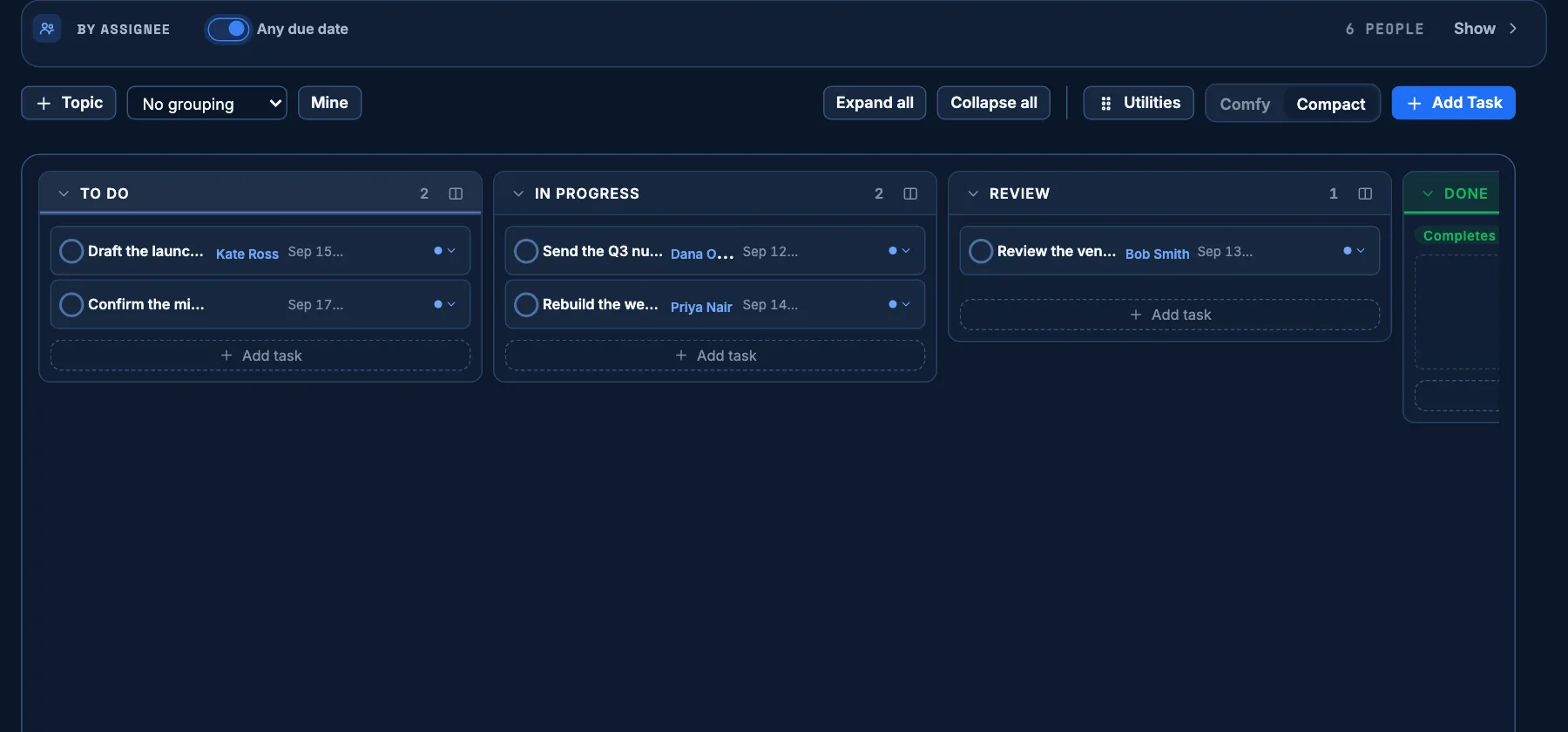
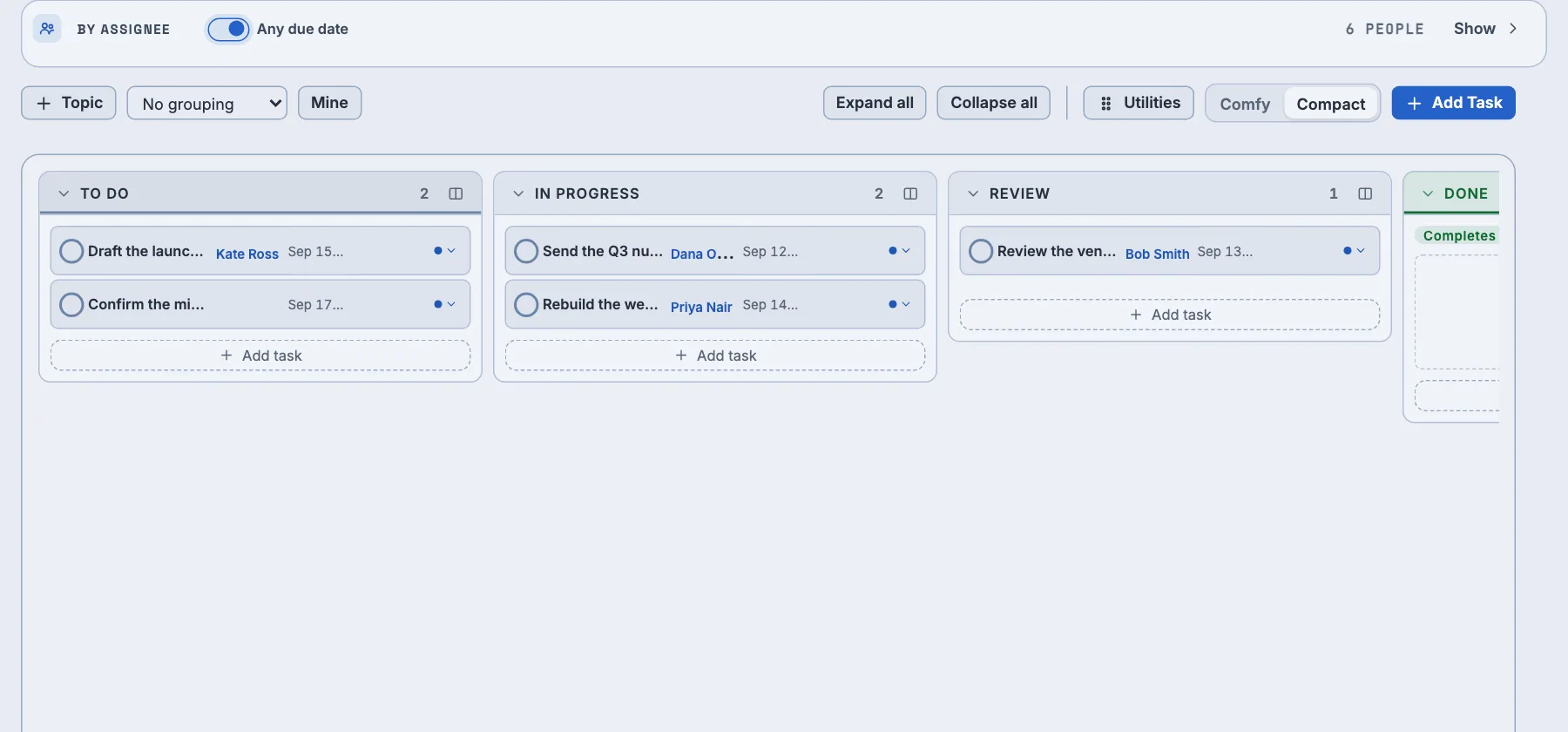
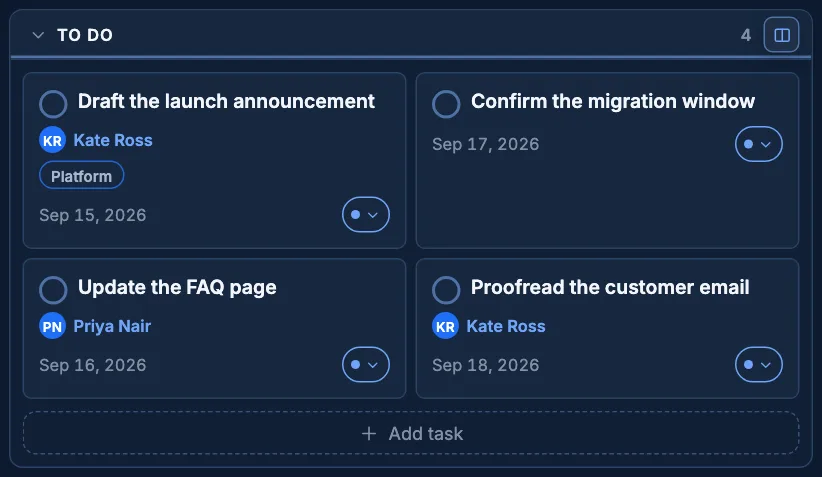
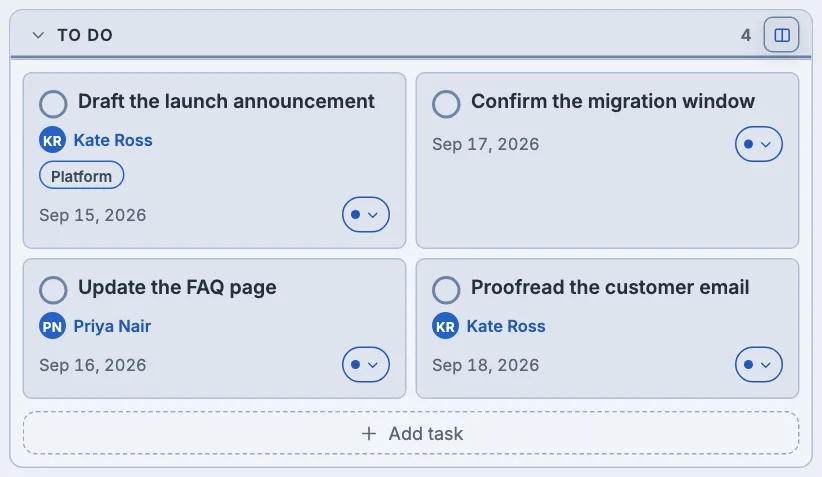
Widen a busy lane
Every lane's header carries a columns button, next to its count — press it to show two card columns instead of one, right where you're already looking. It's for this visit only: leaving the page puts every lane back to a single column, so nothing about the board's layout is saved on your behalf.
Good habits
- More › Board settings…, at the right-hand end of the bar, opens Organization settings on the board you are reading: Teams, Groups, Boards, People (invite someone here), Topics, Swimlanes, Tags, Email, Preferences, Import. The people button beside the Team picker is the shortcut to the roster on its own.
- The View row is the whole board's scope — Board is the live one, and Owned, Completed and Archived are the same board asked a different question. Each carries its own count, so you can see what is there before you switch.
- Clear all is always visible, just grayed out when nothing's filtered — so an empty board never quietly reads as "broken."
- One lane per board is the finish line: an administrator flags it, and dropping a task there is what completes it. A lane merely named "Complete" finishes nothing.
- Being on a team does not by itself give you access to any of its boards — that's granted board by board.
Words you'll see
- Team
- Owns people and one or more boards.
- Board
- One workspace of lanes and tasks, belonging to exactly one team.
- Swimlane
- A board's own status columns — every board names its own.
- Topic
- A label used to group cards into sections on the board.
Want more detail — roles, exporting, importing a spreadsheet? Open the full manual →